
When you need it
Most pipelines get a few requests a day and do not need this. Turn it on when many Work Items arrive together. For example, you load 400 past customers into a “Recall” pipeline on Monday morning. Without pacing, 400 messages leave at 9:01 AM. Three things go wrong:- Email providers and phone carriers may treat the burst as spam.
- Replies come back all at once and swamp your team.
- One address or number carries the whole load.


An example day: 16 messages, with and without mass outreach.
How it works
Mass outreach does two things for every Work Item in the pipeline. 1. It gives the Work Item one sending channel.You group your email addresses and phone numbers into buckets. A bucket is a named pool of senders, such as “Sales team” or “Midwest office”. The agent reads each bucket’s name and description and picks the one that fits the Work Item. Z360 then hands out that bucket’s channels in turn, so the load is shared. A Work Item keeps its channel for as long as that channel stays active in the bucket, so the customer keeps hearing from the same address or number. 2. It reserves a time for every message.
Before each send, the agent reserves the next free time on its channel. Z360 spreads those times evenly across the pipeline’s working hours, up to the channel’s daily limit. If the next free time is later, the agent sets a wake-up and waits.
A worked example
- Working hours: 9 AM to 5 PM, which is 480 minutes
- Channel daily limit: 40 messages
- Result: one message about every 12 minutes
Before you turn it on
Check these three things first.1
Set a daily limit on every channel you plan to use
Mass outreach needs a daily limit to do its math. A channel without one cannot reserve times, and its Work Items will not send.
- Email: go to Settings → Emails, edit the address, and set Agent’s Daily Message Limit.
- Phone: go to Settings → Phone → Manage, edit the number, open Advanced, and set Agent’s Daily Message Limit.
2
Set the pipeline's working hours
Open the pipeline’s Schedule step and set Weekly Availability. Messages are only spread inside these hours.
3
Check your texting registration
A phone number can be used in a bucket only when texting is turned on for it. Make sure your number is registered for business texting. See How to register for 10DLC.
Turn on mass outreach
- Go to Settings → Pipelines and open the pipeline.
- Open the Agent step.
- Switch on Mass outreach. The Buckets section appears with one empty bucket.
- Fill in the bucket:
- Bucket name — a short name the agent can recognize, such as “Sales team”.
- Channels — select the email addresses and phone numbers that belong to this bucket.
- Description — tell the agent when to use this bucket, such as “existing customers in the Midwest”.
- To add another bucket, click the + button beside Buckets.
- Save the step.
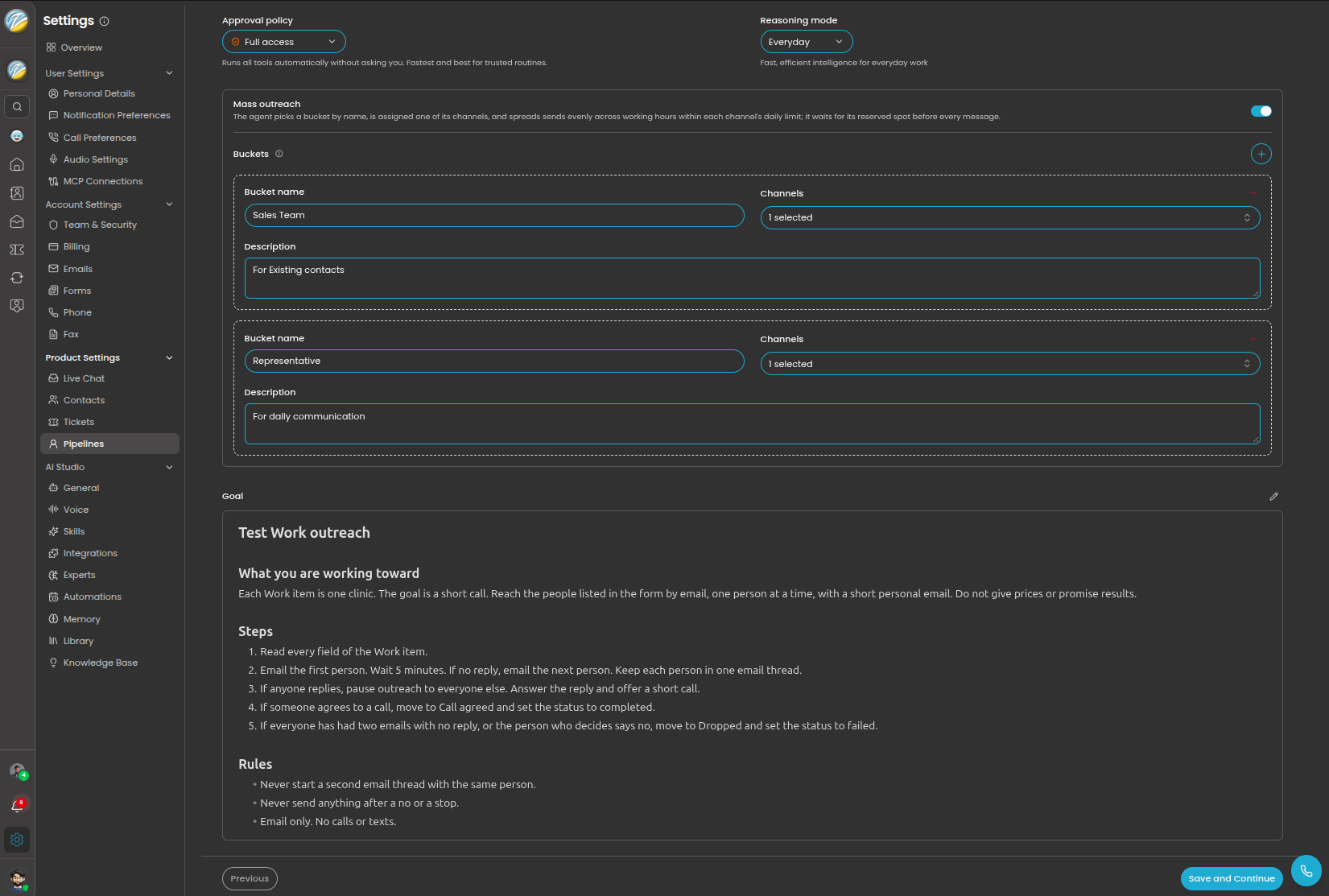
Mass outreach switched on, with two buckets. Each bucket has a name, its channels, and a description.
One bucket or several?
One bucket is enough when every Work Item in the pipeline can be sent from the same pool. Add more buckets when different Work Items should come from different senders. For example, a “New customers” bucket with your sales addresses and an “Existing customers” bucket with your support addresses. The agent chooses by reading each bucket’s name and description, so write them clearly.A bucket can hold email addresses and phone numbers together. The same address or number can be in more than one bucket. Each bucket needs its own name and at least one channel.
What your team will see
- Work Items that look idle. A Work Item waiting for its reserved time stays In progress. Open its chat to see the next wake-up beside the message box.
- A steady flow of replies. Because sends are spread out, replies arrive through the day instead of in one wave.
- The same sender every time. Each customer keeps hearing from the channel their Work Item was given.
Good to know
- Replies are not limited. The daily limit covers messages the agent starts. Answers to incoming messages are not counted.
- Limits are per channel, not per pipeline. If two pipelines share one phone number, they share its daily limit.
- More channels means more capacity. A bucket with two addresses and a limit of 40 each can start 80 conversations a day.
- You switch it on in the pipeline. Ask Z can build and edit pipelines, but mass outreach is set in the pipeline’s Agent step.
- Turning it off is safe. With mass outreach off, the agent uses the sender your goal names and times its own messages inside your working hours. Your buckets are kept for when you switch it back on.
Tips
- Start low. Begin with a modest daily limit and raise it as replies and deliverability look healthy.
- Match the limit to your team. If your team can handle 30 replies a day, do not send 300 first messages.
- Load big lists early in the week. Follow-ups then land on working days.
- Say how many follow-ups in the goal. Each follow-up uses a reserved time too. Two follow-ups per Work Item triples the sends.