
How this helps your practice
- Patients get answers right away. The assistant replies as soon as a patient writes in, using your real open times. Patients book while they are still in the conversation, so fewer of them go elsewhere.
- Your front desk gets time back. Booking, moving a visit, collecting insurance cards, and simple balance questions are handled from the first message to the last. Your team is free for the patients in front of them.
- Your records stay correct. New patients, updated phone numbers, and insurance card photos go straight into your practice system. Nobody has to copy them by hand.
- Your schedule stays full. The assistant can see when a patient is due for a recall visit or has treatment that is not booked yet, so a conversation can end with a booked visit.
- Your team stays in control. When something needs a person, the assistant flags the conversation as Needs Attention in your Z360 Inbox. Your team reviews it and decides what to do, so a person always has the final say.
Practice systems we support
To find them in Z360, go to Settings, then Integrations, and select Browse Pre-built Integrations. They are listed in the EHR & Practice Systems category.Medical practices
CharmHealth
ModMed
athenahealth
eClinicalWorks
NextGen Office
Dental practices
Open Dental
Dentrix
Dentrix Enterprise
Dentrix Ascend
Eaglesoft
Denticon
Curve Hero
Cloud9
Dolphin
OrthoTrac
PracticeWorks
Before you start
The Z360 team sets up each connection with you. You do not need any technical skills.- Contact the Z360 team. Tell us which practice system you use.
- Give approval if we ask. Some practice systems need someone at your practice to approve Z360 before it can connect. We will tell you if this is needed.
- Get your connection token. When everything is ready, we send you a connection token. This is a private code that links your Z360 account to your practice system. Keep it private, like a password. It only works for your Z360 account and your practice system.
Connect your practice system
1
Open the list of integrations
In Z360, go to Settings, then Integrations.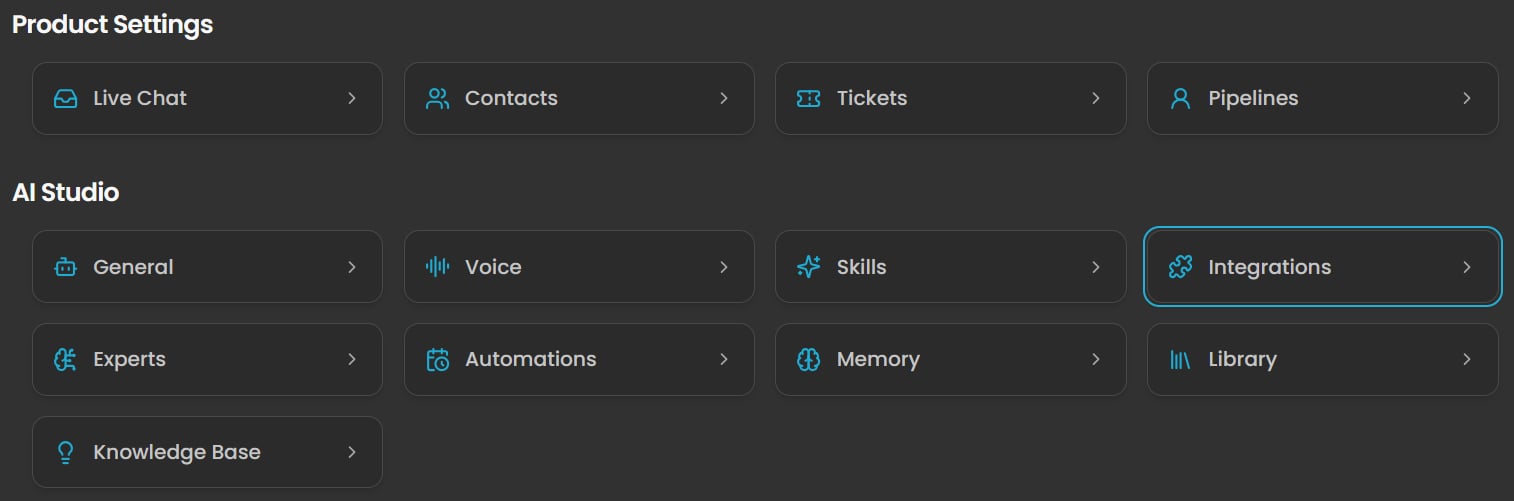
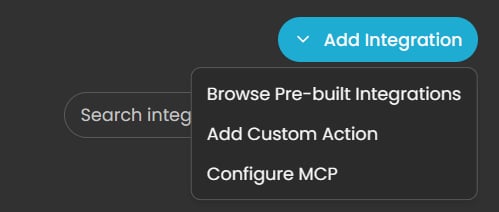
2
Find your practice system
Search for your practice system by name, or choose the EHR & Practice Systems category. Then click Connect on your practice system’s card.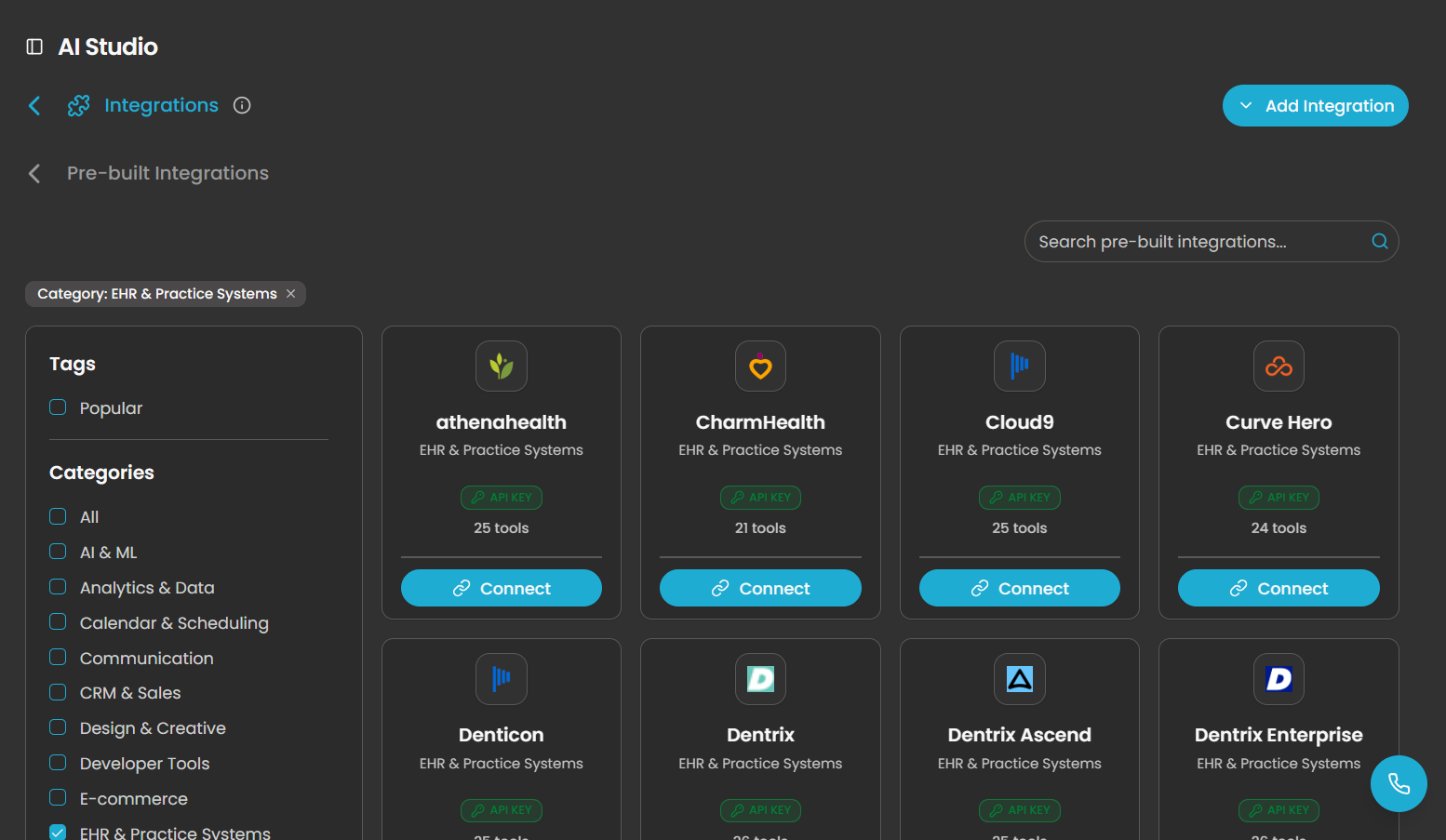
3
Choose who can use it
Set Ownership to Organization. This lets everyone on your team use the connection with the assistant. Choose Private only if you want the connection to work for your own account and nobody else.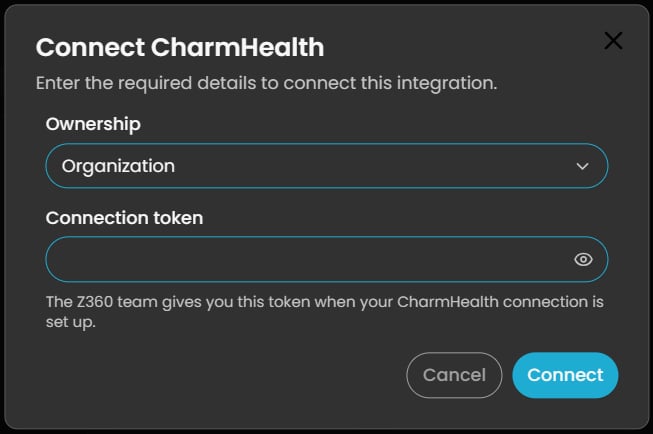
4
Add your connection token
Paste the connection token you got from the Z360 team into Connection token. Then click Connect.
Check that it works
After you connect, your practice system shows as a card on the Integrations page.- Ask the Z360 AI assistant a simple question that only your practice system can answer. For example, “Which providers work at our practice?” or “What open times do we have next Tuesday?”
- If the assistant answers with your real providers and schedule, you are connected.
Next steps
What Z360 can do
See how the assistant handles a patient conversation from the first message to the booked visit.
Questions and answers
Answers to common questions about connecting your practice system.
Fix a problem
What to do when something does not work as expected.