
Your controls at a glance
To open a pipeline, go to Settings → Pipelines, or click Manage pipelines on the Work page.
Pipeline defaults
Every Work Item’s agent starts with the approval policy and reasoning mode set on its pipeline.- Go to Settings → Pipelines and open the pipeline.
- Open the Agent step.
- Choose the Approval policy: Ask for approval, Auto, or Full access. See what each policy does.
- Choose the Reasoning mode: Everyday, Advanced, or Frontier. See how to choose a level.
- Save the step.
The Work agent and Inbox agents have separate approval settings
A job involves two kinds of agents, and each takes its approval setting from a different place.
So setting a pipeline to Ask for approval does not make every customer message wait for you. To review messages before they are sent, also change the Inbox default for the channels the pipeline uses. See Set Inbox defaults for approval and intelligence.
Where approval requests appear
- From the Work agent — in the Work Item’s chat. Open Work, then click the Work Item.
- From an Inbox agent — in that conversation in Inbox. From the Work Item, open Work Summary → Conversations and click the conversation. Then click Agent needs your attention above the message box, or the agent’s icon (the Z logo) in the bar on the right edge. The request opens in the panel on the right.
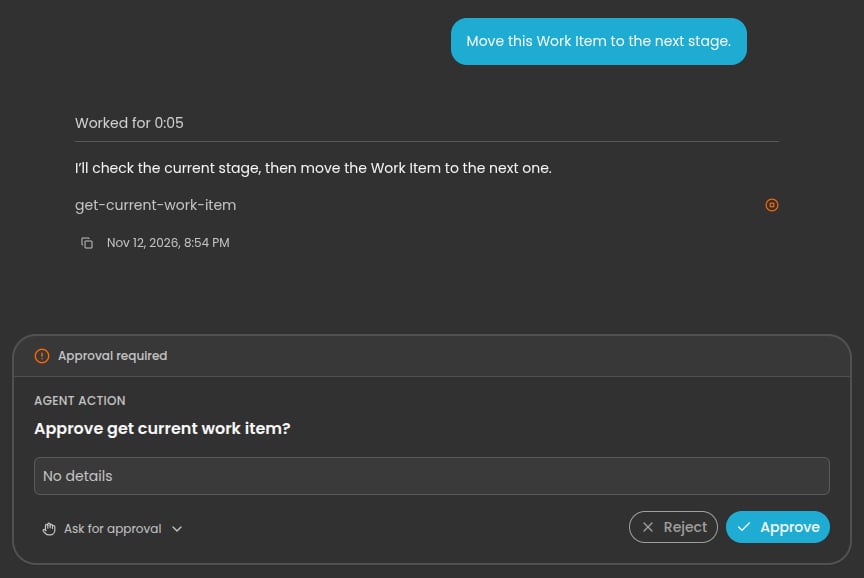
An approval request in a Work Item's chat. Here the agent asks before it looks up the Work Item.
Change the rules for one Work Item
Sometimes one job needs a tighter or looser leash than the rest. Open the Work Item’s chat and use the approval and reasoning selectors in the message box. The change applies to that Work Item only.A Work Item picks up the pipeline’s approval policy and reasoning mode when its agent starts. If you change the pipeline later, new Work Items use the new setting. Work Items already running keep theirs until you change them in their chat.
Working hours
In the pipeline’s Schedule step, set the Weekly Availability. The agent times its outreach inside these hours. Working hours belong to the pipeline. A “Maintenance requests” pipeline can run seven days a week while a “Vendor onboarding” pipeline runs on weekdays only.When the Work agent asks you a question
The Work agent asks a teammate when your goal tells it to, or when it is missing something only your business knows. A question is different from an approval request, and it can appear under any approval policy.- The question appears in the Work Item’s chat.
- The agent is paused until someone answers.
- Any teammate who can open the Work Item can answer. It does not have to be the assignee.
- Pick one of the suggested answers, or type your own.
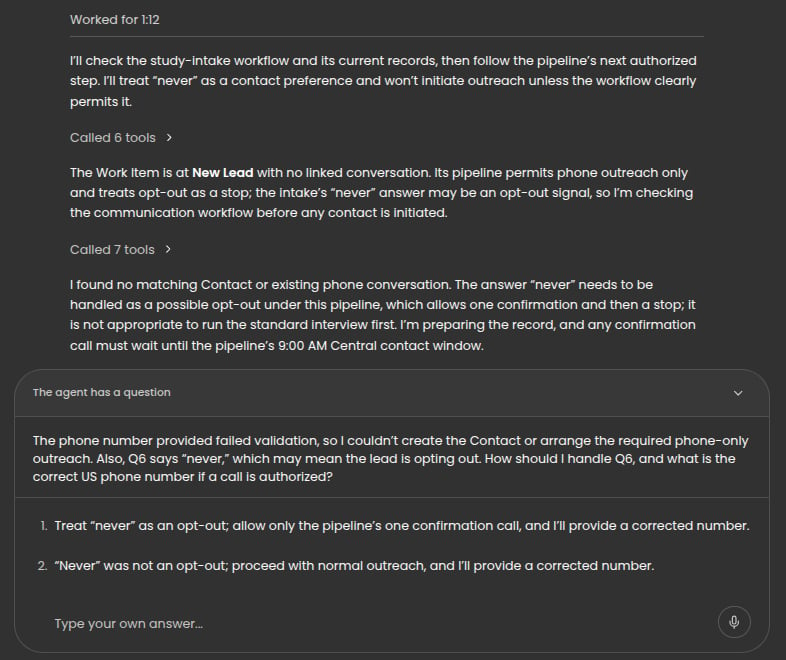
The agent explains what it needs, suggests answers, and waits.
Step in or take over
You are never locked out of a job.- Reply yourself. Open the linked conversation in Inbox and answer the customer directly. Then tell the agent in the Work Item’s chat.
- Redirect the agent. Tell it in the chat: “Stop contacting the vendor” or “Offer Friday instead”.
- Move the stage. Change it from the Work page when you know something the agent does not.
- End the job. Tell the agent: “This is resolved. Mark it completed.”
Protections that are always on
These apply under every approval policy, including Full access.- The Work agent cannot message customers directly. Every message goes through an Inbox conversation your team can read.
- Form answers are treated as information, never as instructions to the agent.
- Blocked and Do Not Disturb contacts keep their restrictions. See DND and Block Contact.
A sensible way to roll out
1
Week one: watch everything
Set the pipeline to Ask for approval, and review customer messages too by tightening the Inbox defaults for the channels the pipeline uses. Approve each step and note where the agent surprises you.
2
Fix the goal, not the agent
Each surprise points to something the goal did not say. Add it. See Write a goal the agent can follow.
3
Loosen one setting at a time
Move the pipeline to Auto first. When that runs well, relax the Inbox defaults.
4
Keep the human decisions in the goal
Even on Full access, a goal that says “ask a teammate before agreeing to a cost above $300” still tells the agent to stop and ask.